
-
How do I use custom settings in Salesforce flow?
How do I use custom settings in Salesforce flow?


Log In to reply.

Popular Salesforce Blogs

Setting up Salesforce Marketing Cloud: The Complete Guide
Salesforce Marketing Cloud is an incredibly powerful marketing and branding tool utilized by companies to effectively interact with their customers. Its out-of-the-box features like journey…


Best Practices for Salesforce Sales Cloud Implementation
In today’s competitive sales landscape, businesses need more than just a CRM, they need a system that delivers visibility, automation, and actionable insights. Salesforce Sales…


Steps to Secure Transaction using Transaction Security in Salesforce
Hi All! Here we will learn how to provide security in Salesforce when you perform any event of transaction like data export or import and…

Popular Salesforce Videos
How to Focus on Report Results in Salesforce Console | Salesforce
When you work with reports in a fast-paced Salesforce Console environment, every extra click or focus change can slow you down. Now a streamlined console…

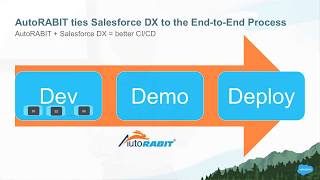
Salesforce DX simplified with AutoRABIT - Bay Area Salesforce Developer Group
A common need that teams developing on the Salesforce platform express is the desire for a single solution that will take their developers through the…


Smart Merchandising with Salesforce Einstein AI
Smart Merchandising is a holistic tool that magically combines rich insights from site-wide search, navigation, purchases, and the customer’s current session with strategic business goals.…
