

Salesforce Dataloading — Common Pitfalls

If you are a Salesforce Administrator in a large company, you inevitably get to do a lot of data loading. But existing tools like dataloader.io or Data Import Wizard have their quirks, which can result in data corruption if you’re not careful. In this article, I will share some experiences on common pitfalls during data loading, and how to solve them.
Disclaimer: I am the founder of an alternative called SmartUpload, that can help you overcome these pitfalls. In this article, I will point to solutions within SmartUpload that are built to overcome these common data loading issues. And there is also a free version of SmartUpload.
Overview
In this article, I will discuss pitfalls that can occur when using free tools commonly used for data loading into Salesforce:
- Dataloader (sometimes called the Apex Dataloader), a command-line utility, can import millions of rows.
- Dataloader.io (free up to 10.000 records per month, with quite steep licensing if you require more records)
- Data Import Wizard (limited to 50.000 rows per import)
These three tools all are free to use (to some extent) and have their own pros and cons, but since they all work in a similar fashion they are all prone to the same issues. So let’s dive in …
Pitfall 1: Excel to CSV conversions
All existing Salesforce dataloading tools work based on CSV files. These are plain text files, where data is stored on lines separated by commas. But the CSV only contains values, it doesn’t have metadata about the values.
Why is this important? Let’s illustrate with an example. Consider the following Excel sheet:
Example Excel file seems pretty straightforward, but when we export this to CSV, the following text file is generated:
This file has three issues when we try to import it into Salesforce:
So when you are converting data from Excel files into CSV files, you might end up with a file that you manually have to correct before loading, to make sure that Dataloader, dataloader.io or Data Import Wizard won’t fail to parse your CSV.
NB: SmartUpload supports XLS and XLSX files natively, without the need for conversion. And it will also validate the Excel file before processing, to make sure all data is correctly formed.
Let’s dive into the next phase of imports: mapping columns from your CSV file to Salesforce fields. If you have a very simple object model, this usually won’t be too much of a problem. But there are some things to consider:
NB: SmartUpload allows administrators to create mappings once and assign them to users, where business users can only upload data and not modify the mapping.
Within Salesforce, objects can be connected using lookup or master-detail relationships. That’s a great way to keep your data clean, but can be quite a headache if you have a lot of interconnected data to import.
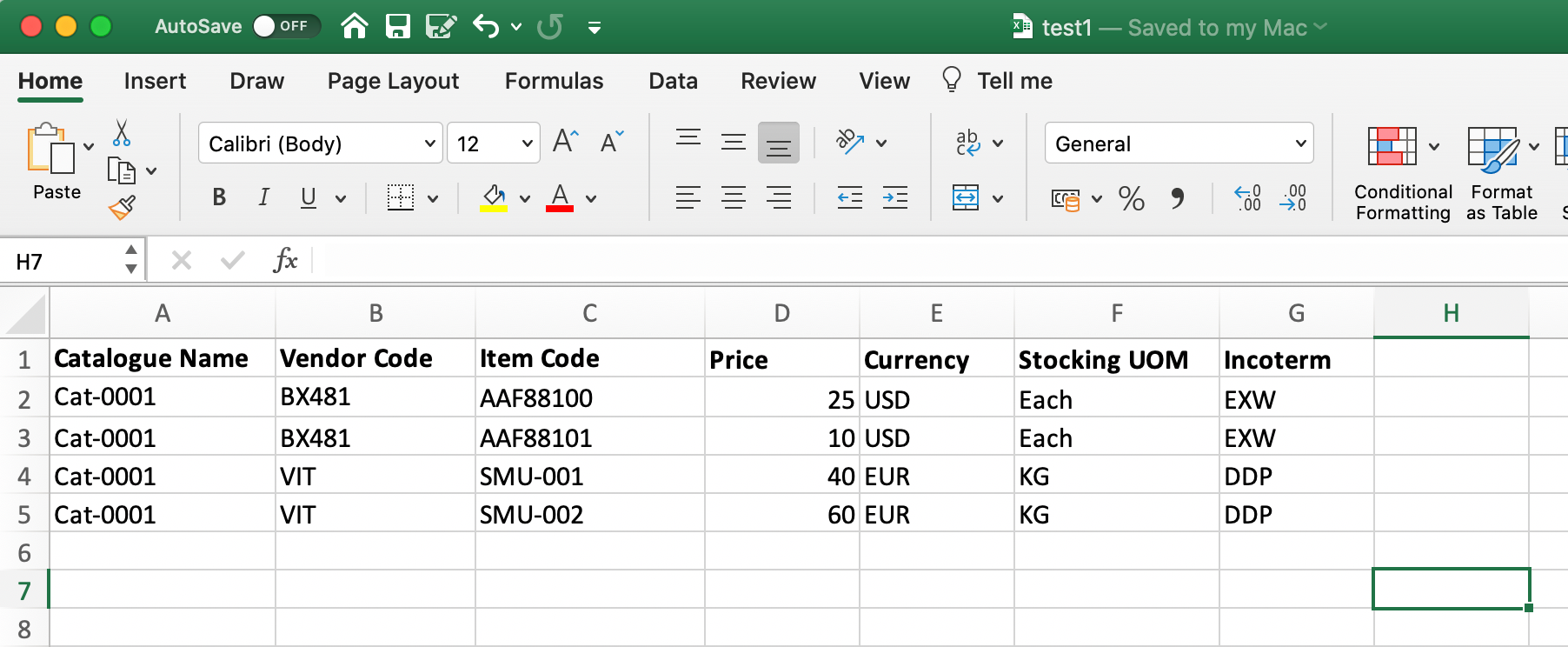
Let’s consider the following example; one of the most complex I have encountered during a consultancy gig:
This is the source Excel that needs to be imported into the ‘SMC__Supplier_Catalogue__c’ object: a supplier catalogue as part of the SCM package of Financial Force. That object has a lot of master-detail relations to other objects, like:
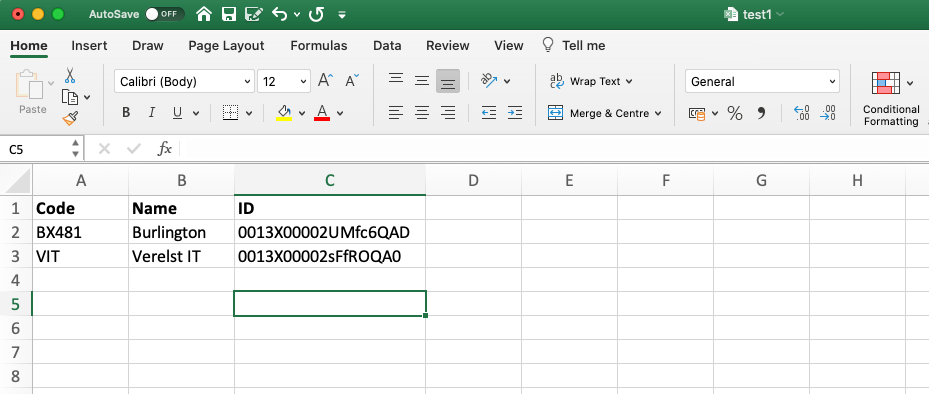
So what do we do in this case? We create exports for all these 5 objects, put the results into separate sheets and use VLOOKUP formulas to query the data. For instance, for the vendors, a new tab would look like this:
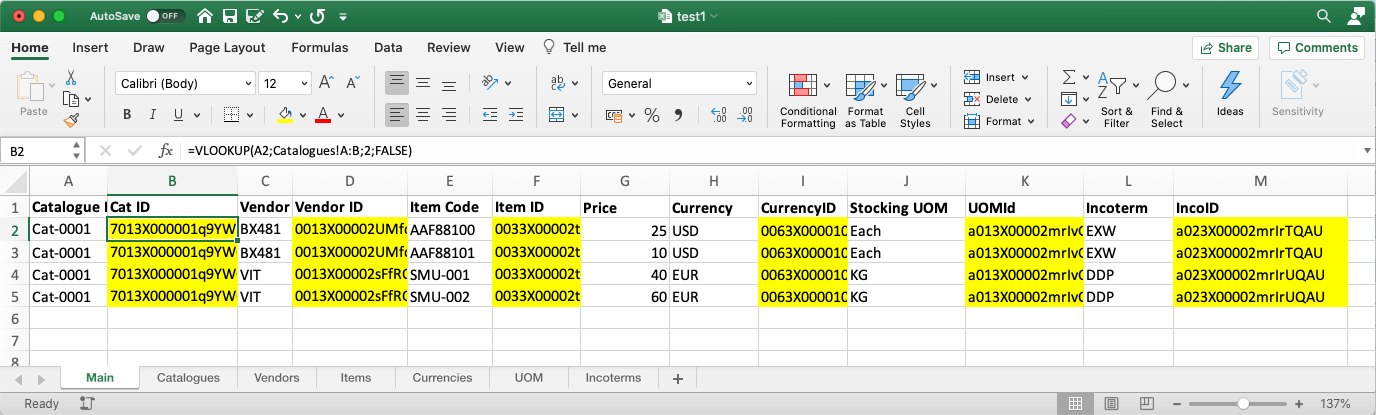
The VLOOKUP formula for this: =VLOOKUP(C2;Vendors!A:C;3;FALSE)
Doing this for all 6 lookups will end up in the following quite horrible Excel, I have marked all VLOOKUP formulas in yellow:
Now you can finally export this Excel to CSV and run the import. But I think you can agree that doing this on a daily basis when new prices from suppliers come in … it’s a nightmare.
NB: SmartUpload can perform automated lookups, without the need for manual export-vlookup work.
Similar to the previous point: if you want to update a record in Salesforce, all existing tools limit you on the field to use as a primary key:
Now sometimes these two don’t cut it. For instance if you have an Excel file with account names: you cannot update Accounts based on their name. So you would have to:
Neither of these two solutions is very elegant.
NB: SmartUpload can perform updates using any field as unique ID, without any changes to your Salesforce Org.
The next challenge is how to perform updates and inserts in one go, the so-called ‘upsert’. Building on top of the previous pitfalls, when you have an Excel file where some rows contain new records but others map to existing records, stuff gets really interesting:
Let's re-consider the Excel file we discussed at the 3rd pitfall: the huge Supplier Catalogue import. It’s a very common business scenario that a new pricelist from a vendor contains both updated prices (which should be updated in the existing entries) as well as new products that should generate new records.
But it might be as simple as a list of accounts, where some of them already exist in Salesforce and others do not, and you want to sync it.
NB: SmartUpload can process upserts using a combination of fields to determine whether an entry is new or existing.
Data loading in Salesforce can be a very tricky business, but with these pitfalls in mind, you can get a lot done using free tools.
However, if you need more control, remove tedious manual steps, or want to delegate work to business end-users, consider using a more intelligent tool like SmartUpload. You can use it for free on https://free.smartupload.net/.
Want to receive updates? Follow us on our LinkedIn page.


 Don't forget to check out: DataLoader in Salesforce - An Introduction
Pitfall 2: Manual Mapping
Pitfall 3: ID Lookups and Relationships
Pitfall 4: Updating records without an ID
Check out an amazing Salesforce Tutorial video here: How to Get Started with Data Prep | Salesforce
Pitfall 5: Upserts
Conclusion


Responses