
-
When creating a new picklist using "Use global picklist definition" take what values?
When creating a picklist There are two option either use "Use global picklist definition" or Enter your specified values so I am confused What values will be taken if "use Global picklist definition" selected ?

Log In to reply.

Popular Salesforce Blogs

Salesforce Integration with LinkedIn - Here's All You Need to Know
The general approach to selling doesn’t work as effectively in today’s world. You cannot expect extraordinary results by pushing out bulk emails to every prospect…


Salesforce Lightning Experience: Main Reasons Why Salesforce Classic is Fading
Introduction "Salesforce Classic is at its Death-End and s going to be okay!" These things are creating a buzz in the online Salesforce Lightning world.…


How To Integrate Salesforce With Netsuite?
Salesforce is the worldwide leader in making revolutionary business applications, served from the cloud and are designed to help generate leads for an organization. Also,…

Popular Salesforce Videos

Salesforce: How To Set Up Einstein Bot
With Einstein Bots, you can keep your service reps free from simple, repetitive tasks and they can spend more time on complex customer cases. If…

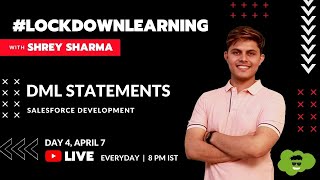
Learn DML Statements in Salesforce Development
In this video, We'll be learning about DML (Data Manipulation Language) in Salesforce development: We will be discussing the following things in this video: 1.…

How Cyntexa Helped Diet Meal And Food Ordering Service Providers Offer Their Users The Ability To Order Online | Salesforce
It is important to keep your business at the top with the latest technical advancements. Presenting you a case study showcasing how Cyntexa Helped Diet…
