
-
Before creating any new record I want the user to select a type. How can i achieve this?
Before creating any new record I want the user to select a type.For e.g when creating a new Account,Type of Account list appears before filling the fields to create a new account?

Log In to reply.

Popular Salesforce Blogs

Best Practices For a Well Managed Knowledge Base In Salesforce
Generation Z doesn't like to rely on customer care representatives for assistance. Independence and self-sufficiency are important for them. As a result, self-service has gained…


Will Salesforce Commerce Cloud Take The Economic Industry By Storm?
A Complete Guide to Salesforce Commerce Cloud Salesforce Commerce Cloud: What is it? A robust cloud-based e-commerce platform, Salesforce Commerce Cloud was created to assist…

Popular Salesforce Videos

Salesforce Placement Success Story By One of our Student
Want to learn about Salesforce and planning to make a career in the Salesforce Industry? Join this useful group for Salesforce job & career info.


Which Certification Is Needed In Salesforce for Getting Job?
Want to get a job in the Salesforce industry? Wondering which certifications are going to help. Join this useful group for Salesforce job & career…
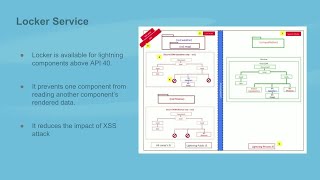
Avoid Common Security Mistakes in Salesforce
Are you using Salesforce in the most secure way? Security is not a “set it and forget it” thing. We conduct Salesforce Security Risk Assessments…
